> ## Documentation Index
> Fetch the complete documentation index at: https://help.aichat.com/llms.txt
> Use this file to discover all available pages before exploring further.
# Guide to Integrating WhatsApp in AiChat
> Integrating WhatsApp with AiChat allows you to connect your chatbot to one of the world’s most popular messaging platforms, enabling real-time engagement with your customers. Follow this guide to set up your WhatsApp Business integration.
# **Integrating your WhatsApp number with AiChat allows you to:**
* Monitor and respond to text messages in our multi-channel inbox.
* Increase customer engagement with 24/7 bot response
* Boost customer conversion using flows to automate leads generation and other activation conversations.
* Go beyond 5-user limit set in WhatsApp Business App
* Automate marketing outreach with broadcast and follow-ups
# Requirements
1. Have a Meta Business Portfolio created. Learn how to [create a Meta Business Portfolio](https://www.facebook.com/business/help/1710077379203657).
2. You, or the person creating the WhatsApp Business API account, must be an administrator or have full control of Meta Business Profile
3. Have a phone number capable to receive SMS or incoming calls ready at hand. This number must not be linked to WhatsApp Personal app, or WhatsApp Business App. Disconnect the number if it is already linked to WhatsApp Personal or Business App.
4. If you are migrating from an existing WhatsApp vendor or Business Service Provider, ensure you have disable the WhatsApp number 2-factor authorisation on Meta's WhatsApp Manager portal.
# **How to Connect Your WhatsApp Number to the Chatbot**
### **Step 1: Integrate WhatsApp Business in AiChat**
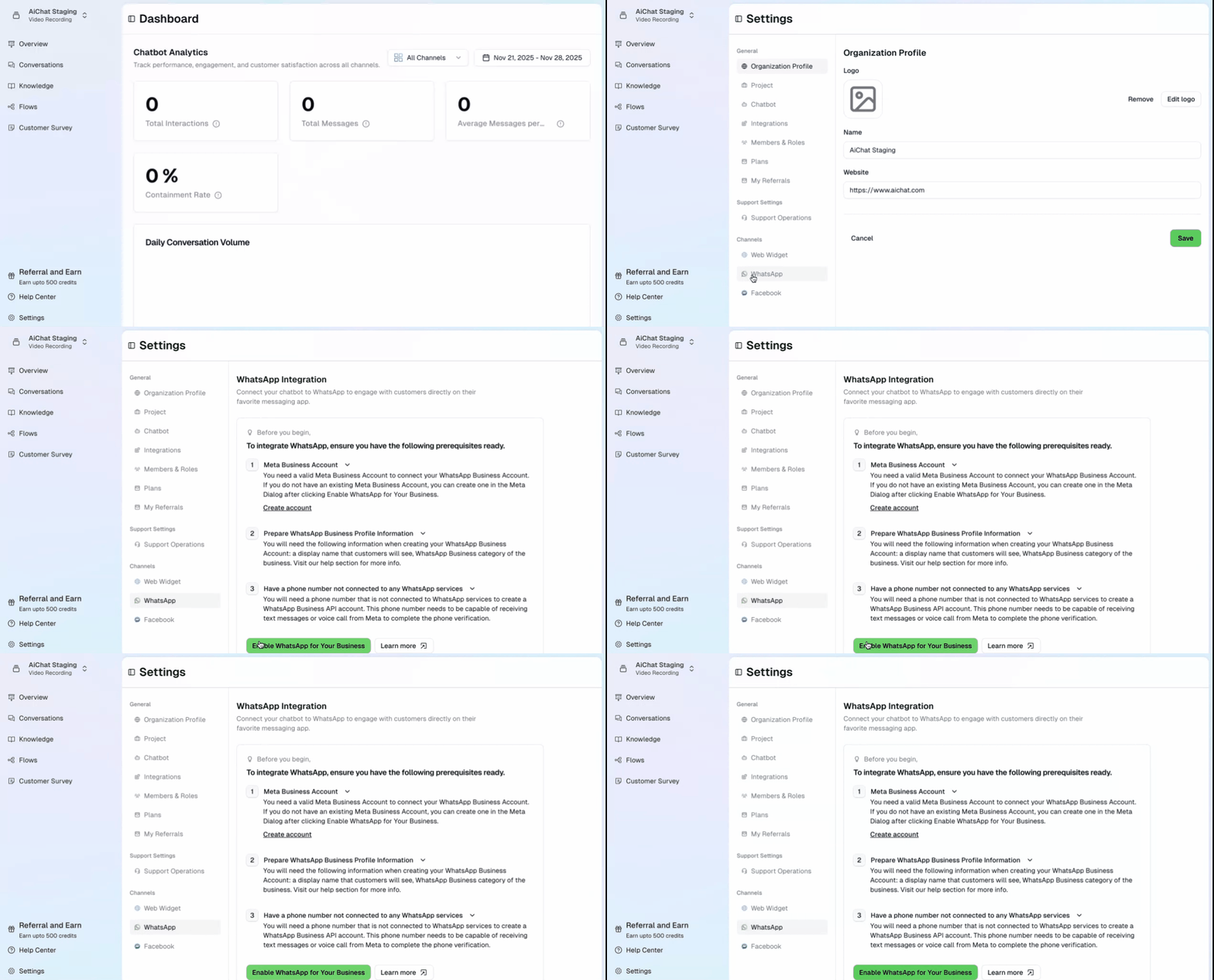
1. In your AiChat dashboard, go to **Settings → Channels → WhatsApp**.
2. Click **Enable WhatsApp for Your Business** and follow the prompts to link your accounts.
3. Upon successful registration, you will return back to AiChat portal with the number setup.
 ## **Step 2: Verify your Meta Business Portfolio**
Verification is required to access WhatsApp Business API.
Business verification is only needed after your WhatsApp Business Account (WABA) is created, or if you haven't completed it before.
1. Verification is required to access the WhatsApp Business API. Confirm if you require unde **Meta Business Settings** → **Business Info → Security Centre → Business Verification**.
2. If “Setup a WhatsApp Business Account” requires verification, complete the verification flow by selecting a country and business type, adding business details, and you can input your preferred verification contact method.
3. Once submitted, Meta typically reviews within 1–5 business days.
## **Step 3: Managing Your WhatsApp Integration in AiChat**
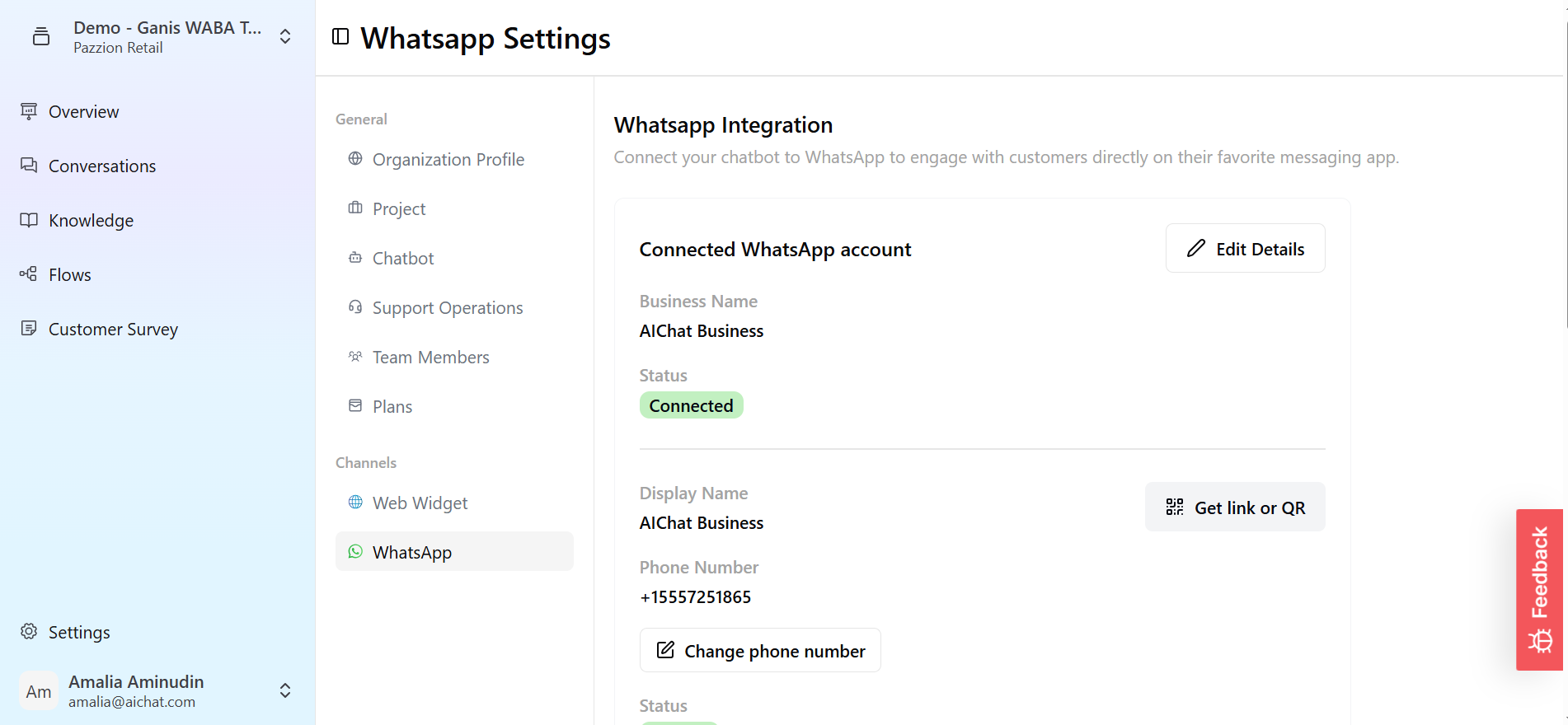
Once your WhatsApp Business Account is successfully integrated with AiChat, you can manage and customize your WhatsApp chatbot settings directly from the dashboard.
### WhatsApp Account Status and Settings
In the AiChat dashboard:
* Your **WhatsApp Business Account status** will be shown as **Connected**.
* You can edit your integration information, including:
* **Profile Picture**
* **Business Name**
* **Display Name**
* **Business Description**
* **Industry Type**
* **Website URL**
* **Email Address**
* Your **WhatsApp phone number** status will display as **Verified**, with the option to change the number if needed.
## **Step 2: Verify your Meta Business Portfolio**
Verification is required to access WhatsApp Business API.
Business verification is only needed after your WhatsApp Business Account (WABA) is created, or if you haven't completed it before.
1. Verification is required to access the WhatsApp Business API. Confirm if you require unde **Meta Business Settings** → **Business Info → Security Centre → Business Verification**.
2. If “Setup a WhatsApp Business Account” requires verification, complete the verification flow by selecting a country and business type, adding business details, and you can input your preferred verification contact method.
3. Once submitted, Meta typically reviews within 1–5 business days.
## **Step 3: Managing Your WhatsApp Integration in AiChat**
Once your WhatsApp Business Account is successfully integrated with AiChat, you can manage and customize your WhatsApp chatbot settings directly from the dashboard.
### WhatsApp Account Status and Settings
In the AiChat dashboard:
* Your **WhatsApp Business Account status** will be shown as **Connected**.
* You can edit your integration information, including:
* **Profile Picture**
* **Business Name**
* **Display Name**
* **Business Description**
* **Industry Type**
* **Website URL**
* **Email Address**
* Your **WhatsApp phone number** status will display as **Verified**, with the option to change the number if needed.
 ### Default Messaging Settings
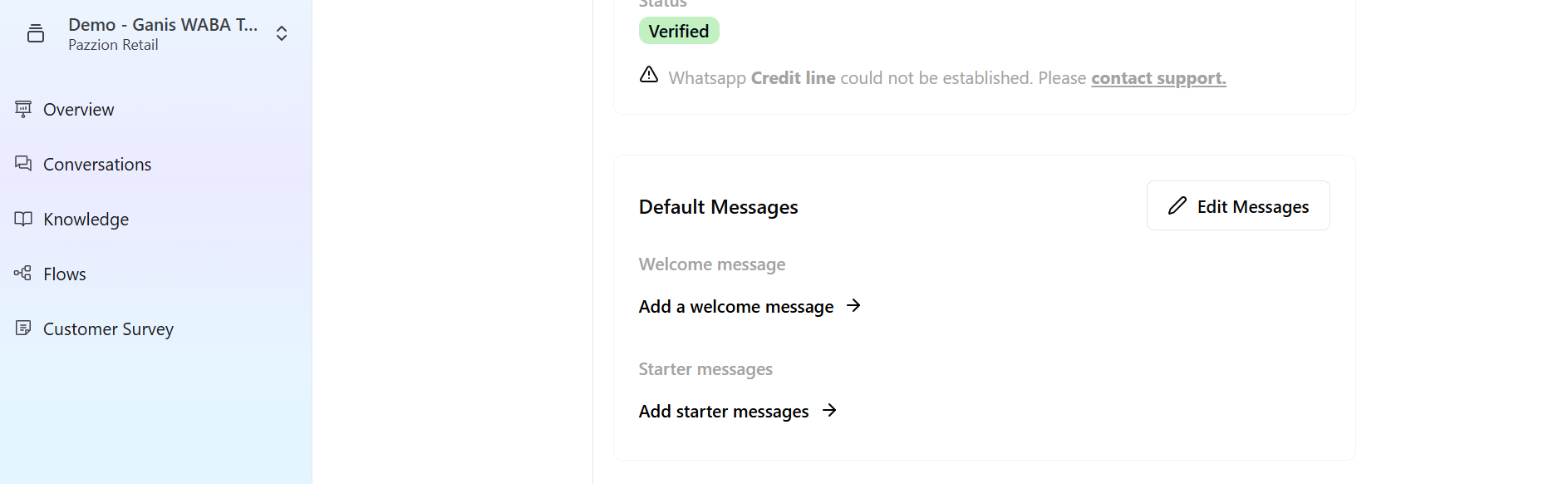
You can customize the following
* **Pre-filled message**: The pre-filled when user clicks on a the WhatsApp link from our web widget
### Default Messaging Settings
You can customize the following
* **Pre-filled message**: The pre-filled when user clicks on a the WhatsApp link from our web widget
 ### Disconnecting WhatsApp Integration
You can disconnect your WhatsApp Business API account number from our AiChat platform at anytime.
* Select **Disable WhatsApp Integration** to disconnect.
* The chatbot will stop sending/receiving messages.
* You can reconnect your WhatsApp Business Account at any time to resume sending and receiving messages through the chatbot.
If you connect a different number, your previous WhatsApp conversation will receive messages from the new number
### Disconnecting WhatsApp Integration
You can disconnect your WhatsApp Business API account number from our AiChat platform at anytime.
* Select **Disable WhatsApp Integration** to disconnect.
* The chatbot will stop sending/receiving messages.
* You can reconnect your WhatsApp Business Account at any time to resume sending and receiving messages through the chatbot.
If you connect a different number, your previous WhatsApp conversation will receive messages from the new number
.jpg?fit=max&auto=format&n=1mbtvhSCg45nqLc8&q=85&s=4e050b20115c6216c050fa707bd8ff61) # FAQ
Some common issues include:
* Incorrect or mismatched business documents
* Mismatched business name or address
* Unverified domain or contact email
* Browser-related issues (use incognito mode or clear cache)
Verification is required to access the WhatsApp Business API. You must complete Facebook Business Verification after your WhatsApp Business Account (WABA) is created, or if you haven't done so previously.
Go to your Facebook Business Manager under *Business Settings > Security Centre*. Your verification status will be displayed on the Verification section.
This may occur if your information doesn’t meet Meta’s requirements or your business category isn’t supported. Ensure the documents are valid and accurately reflect your business. Contact Meta support if needed.
Visit the [Meta Business Help Center](https://www.facebook.com/business/help) and raise a support request from your business account.
No, verification is mandatory to activate WhatsApp Business API features including chatbot support.
You won’t be able to proceed with WhatsApp integration. Make sure to:
* Use matching legal documents
* Upload clear documentation
* Provide an official business email (avoid Gmail/Yahoo)
Check the **AiChat dashboard** under WhatsApp Settings:
* Status will show **Connected** and **Verified**
* You can edit integration info, profile details, and messages
No. It must be a phone number that is not connected to any WhatsApp service. To reuse a phone number, disconnect the number from personal WhatsApp account or WhatsApp Business account, and try to register with the phone number. You may need to wait for a couple of minutes for WhatsApp to reset the phone number from its registry.
There can be several reasons why your messages are not delivered
* **Drop in WhatsApp template quality** - recipients of template may have flagged as spam. Pause your outbound messsaging activity to allow quality to return to normal. You can review details under Meta's [WhatsApp Manager](https://business.facebook/com/wa/manage).
* Your phone number was disconnected - You can review the phone status under Meta's [WhatsApp Manager](https://business.facebook/com/wa/manage).
* Lack of conversation credit balance
###
When you disable WABA integration, your phone number remains linked to the account. If you decide to delete your phone number while it's still connected, you'll need to reconnect it afterwards. To remove the number manually, go to the [Business Facebook WhatsApp Manager](https://business.facebook.com/wa/manage). Please note that it may take a few minutes for the changes to update.
If your chatbot is able to **receive messages but not send replies**, it's possible that your **WhatsApp Business Account (WABA) has been restricted** by Meta.
To verify the status of your WABA:
1. Visit your [Meta Business Settings](https://business.facebook.com/settings) and navigate to **WhatsApp Accounts**.
2. Check for any alerts, such as account restrictions or policy violations.
> ⚠️ If your WABA is restricted, you will need to resolve the issue directly with Meta. AiChat is unable to lift these restrictions on your behalf.
If you have trouble with your WABA, please contact our [support](mailto:support@aichat.com).
###
When you are receiving multiple responses that seem to be coming from different sources on you personal WhatApp, this may be an issue where the WhatsApp Business Account (WABA) was connected to multiple workspaces within our platform, or still integrated to another WhatsApp Chatbot solution. You have a couple of ways to resolve this:
3. If it is confirmed there is a separate workspace on our platform that is connected to the same WABA, you can disable it under Settings > WhatsApp
4. If it is confirmed the WABA is still connected to another WhatsApp Chatbot solution, please consult the solution's support to disconnect it.
## Next
Create Templates
asdasd
# FAQ
Some common issues include:
* Incorrect or mismatched business documents
* Mismatched business name or address
* Unverified domain or contact email
* Browser-related issues (use incognito mode or clear cache)
Verification is required to access the WhatsApp Business API. You must complete Facebook Business Verification after your WhatsApp Business Account (WABA) is created, or if you haven't done so previously.
Go to your Facebook Business Manager under *Business Settings > Security Centre*. Your verification status will be displayed on the Verification section.
This may occur if your information doesn’t meet Meta’s requirements or your business category isn’t supported. Ensure the documents are valid and accurately reflect your business. Contact Meta support if needed.
Visit the [Meta Business Help Center](https://www.facebook.com/business/help) and raise a support request from your business account.
No, verification is mandatory to activate WhatsApp Business API features including chatbot support.
You won’t be able to proceed with WhatsApp integration. Make sure to:
* Use matching legal documents
* Upload clear documentation
* Provide an official business email (avoid Gmail/Yahoo)
Check the **AiChat dashboard** under WhatsApp Settings:
* Status will show **Connected** and **Verified**
* You can edit integration info, profile details, and messages
No. It must be a phone number that is not connected to any WhatsApp service. To reuse a phone number, disconnect the number from personal WhatsApp account or WhatsApp Business account, and try to register with the phone number. You may need to wait for a couple of minutes for WhatsApp to reset the phone number from its registry.
There can be several reasons why your messages are not delivered
* **Drop in WhatsApp template quality** - recipients of template may have flagged as spam. Pause your outbound messsaging activity to allow quality to return to normal. You can review details under Meta's [WhatsApp Manager](https://business.facebook/com/wa/manage).
* Your phone number was disconnected - You can review the phone status under Meta's [WhatsApp Manager](https://business.facebook/com/wa/manage).
* Lack of conversation credit balance
###
When you disable WABA integration, your phone number remains linked to the account. If you decide to delete your phone number while it's still connected, you'll need to reconnect it afterwards. To remove the number manually, go to the [Business Facebook WhatsApp Manager](https://business.facebook.com/wa/manage). Please note that it may take a few minutes for the changes to update.
If your chatbot is able to **receive messages but not send replies**, it's possible that your **WhatsApp Business Account (WABA) has been restricted** by Meta.
To verify the status of your WABA:
1. Visit your [Meta Business Settings](https://business.facebook.com/settings) and navigate to **WhatsApp Accounts**.
2. Check for any alerts, such as account restrictions or policy violations.
> ⚠️ If your WABA is restricted, you will need to resolve the issue directly with Meta. AiChat is unable to lift these restrictions on your behalf.
If you have trouble with your WABA, please contact our [support](mailto:support@aichat.com).
###
When you are receiving multiple responses that seem to be coming from different sources on you personal WhatApp, this may be an issue where the WhatsApp Business Account (WABA) was connected to multiple workspaces within our platform, or still integrated to another WhatsApp Chatbot solution. You have a couple of ways to resolve this:
3. If it is confirmed there is a separate workspace on our platform that is connected to the same WABA, you can disable it under Settings > WhatsApp
4. If it is confirmed the WABA is still connected to another WhatsApp Chatbot solution, please consult the solution's support to disconnect it.
## Next
Create Templates
asdasd