> ## Documentation Index
> Fetch the complete documentation index at: https://help.aichat.com/llms.txt
> Use this file to discover all available pages before exploring further.
# Agent Live Chat Handover
Support Operations is a feature designed to enhance customer service by utilizing live chat agents to assist businesses in managing and responding to customer inquiries efficiently. This feature enables businesses to provide real-time support, ensuring that customers receive prompt and accurate responses to their questions, concerns, or issues.
## Activating Support Operations
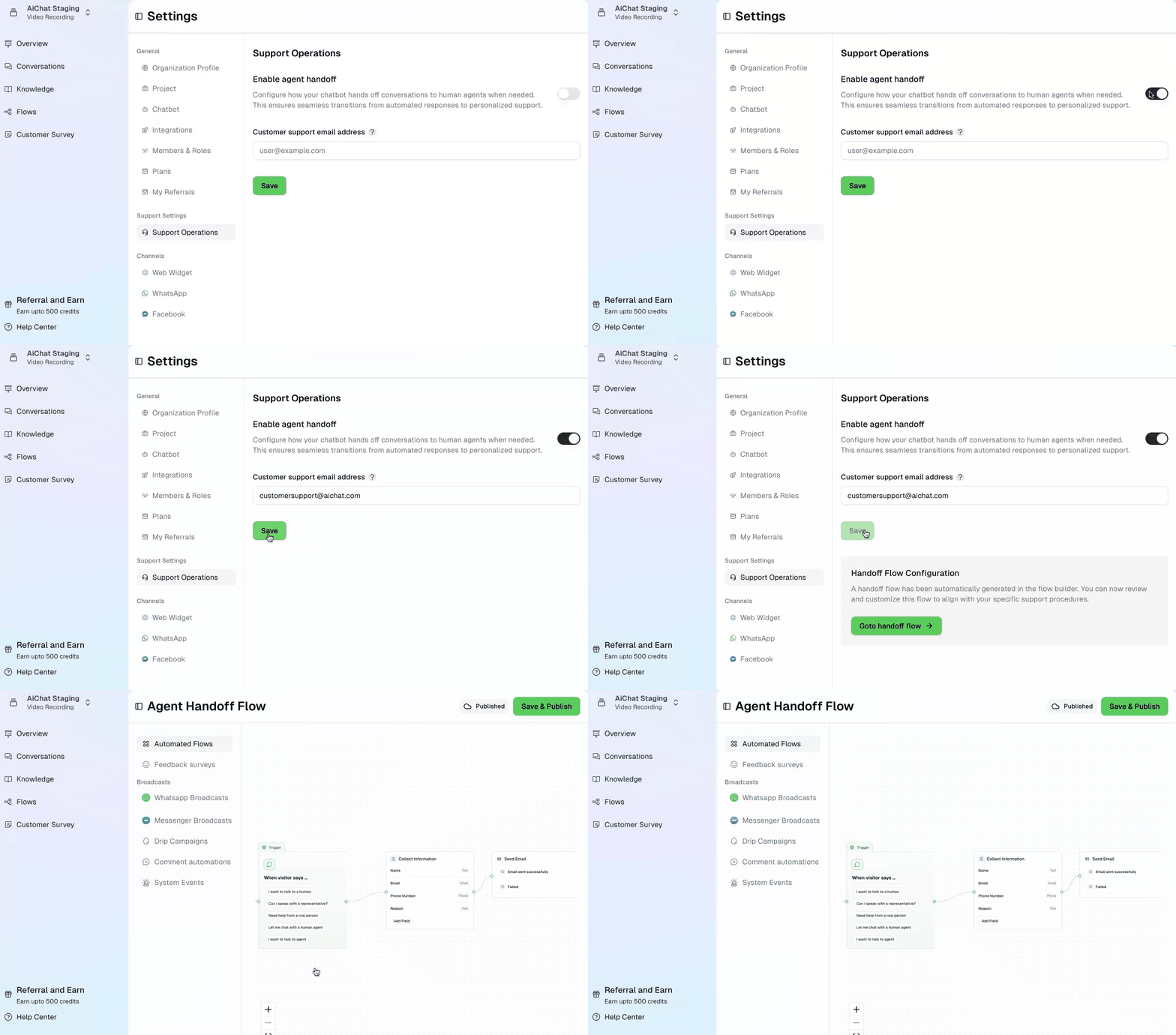
Follow these steps to enable the live chat agent handoff functionality:
1. **Go to Settings:** Navigate to the main menu and select **Settings**.
2. **Access Support Operations:** Within the Settings menu, go to **Support Operations**.
3. **Toggle On:** Simply toggle the switch to activate the feature.
4. **Enter Agent Email:** Input the email address of the live chat agent or support team who will receive the handoff requests.
**Save Changes:** Click the **Save** button to confirm the activation. The button to Agent Handoff Flow will be presented. You can click on this button to tweak the standard Agent Handoff flow that meets your needs.
 ### **Setting Up and Customizing the Handoff Flow**
Once Support Operations is active, you can configure the conversation flow that manages the handoff:
1. **Open the Flow Configuration:** After saving the agent email, the Handoff Flow configuration will appear. Click **Go to handoff flow** to begin customizing.
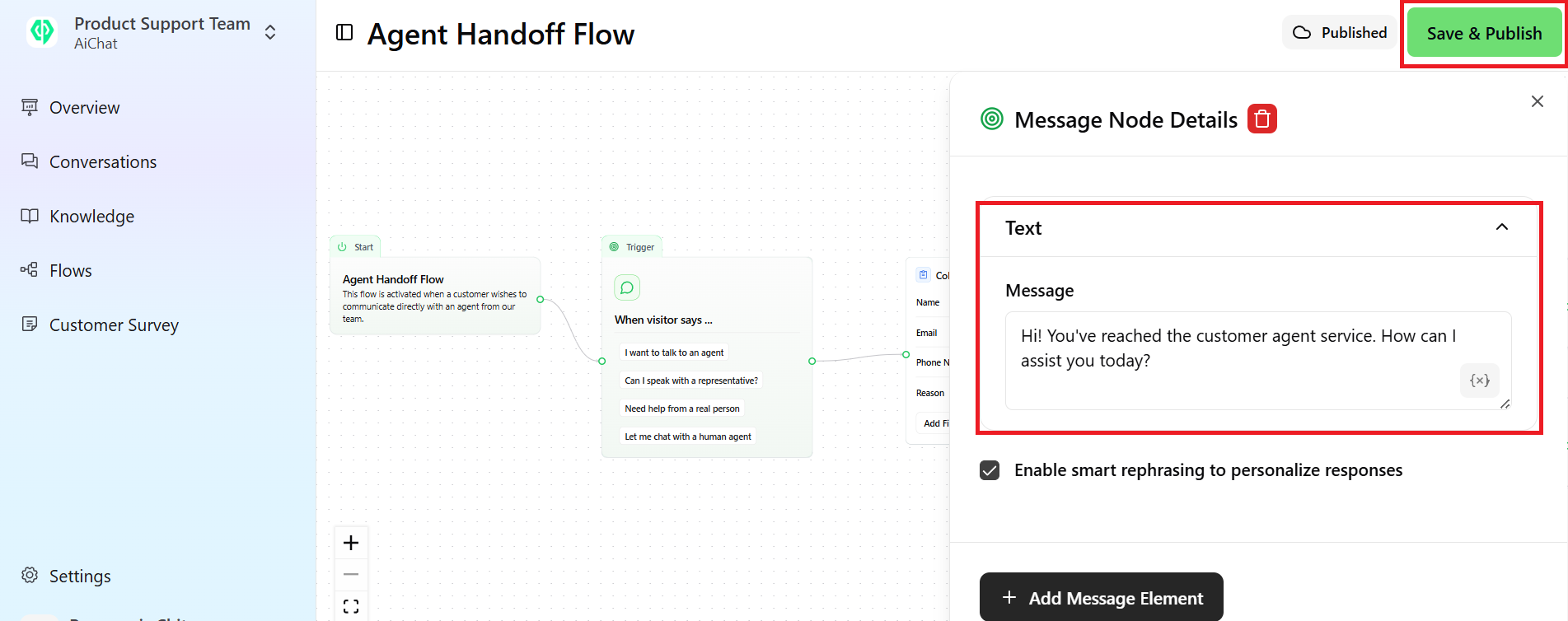
2. **Understand the Flow Structure:** The process follows a standard pattern: **Start** → **Trigger** → **Collect User Information** → \*\*Send Notification → End. \*\*
3. We have already set up pre-defined fields to collect user’s Name, Phone Numbers, Emails and inquiries. Feel free to modify them to suit your needs. See how to configure [**Flow**](https://help.aichat.com/Flows).
### **Setting Up and Customizing the Handoff Flow**
Once Support Operations is active, you can configure the conversation flow that manages the handoff:
1. **Open the Flow Configuration:** After saving the agent email, the Handoff Flow configuration will appear. Click **Go to handoff flow** to begin customizing.
2. **Understand the Flow Structure:** The process follows a standard pattern: **Start** → **Trigger** → **Collect User Information** → \*\*Send Notification → End. \*\*
3. We have already set up pre-defined fields to collect user’s Name, Phone Numbers, Emails and inquiries. Feel free to modify them to suit your needs. See how to configure [**Flow**](https://help.aichat.com/Flows).
 ## Configuring the Agent Handoff Flow
### **1. Understanding When to Customize the Agent Handoff Flow**
Before setting up the handoff flow, consider customizing it in the following scenarios:
* **Expanding User Expressions**: If users commonly phrase requests differently, add more trigger phrases to improve detection.
* **Collecting Additional Information**: If agents need more details before assisting users, include additional fields in the information-gathering step.
* **Adjusting Messaging**: Modify confirmation or error messages to align with your support team’s communication style.
* **Optimizing Email Notifications**: Customize the email content to provide agents with more context, reducing back-and-forth communication.
### **2. Steps in the Flow**
#### **Step 1: Triggering the Flow**
The handoff flow activates when a visitor uses specific phrases such as:
* “I want to talk to an agent.”
* “Can I speak with a representative?”
* “Need help from a real person.”
* “Let me chat with a human agent.”
#### **When to Customize:**
* If users frequently use other phrases, add more expressions to improve recognition and avoid missed handoff requests.
#### **Step 2: Collecting User Information**
By default, the chatbot collects the following details before transferring to an agent:
* **Name** (Text input)
* **Email** (Email input)
* **Phone Number** (Phone input)
* **Reason for contacting support** (Text input)
#### **When to Customize:**
* If your support team needs extra information (e.g., order number, account ID), add relevant fields to the form.
* If fewer details are required, remove unnecessary fields to reduce friction for users.
#### **Step 3: Sending Email Notifications**
The system automatically sends an email to the support team with the collected user details.
* If the email is successfully sent, the user receives a confirmation message.
* If the email fails, an alternative message informs the user.
#### **When to Customize:**
* If your team prefers a different notification method (e.g., Slack alerts, CRM integration), adjust this step accordingly.
* If email notifications need a specific format, modify the content to include essential details.
#### **Step 4: Providing User Feedback**
Once the request is submitted:
* The chatbot informs the user that support has been contacted.
* If an issue occurs, an error message appears, suggesting alternative solutions.
#### **When to Customize:**
* If users require estimated response times, update the confirmation message accordingly.
* If alternative contact methods exist (e.g., phone support), include them in the fallback message.
## **Finalizing the Handoff Flow**
1. **Review:** Check all the steps and customizations in the flow builder.
2. **Publish:** Click **Save & Publish** to make the changes live and available to your users.
**Test:** Test the handoff process yourself to ensure it's working smoothly.
## Deactivating Support Operations
If you want to deactivate the support operations feature, simply toggle the switch off and click **Save**. This will disable live chat support, preventing conversations from being handed off to human agents until reactivated.
## Configuring the Agent Handoff Flow
### **1. Understanding When to Customize the Agent Handoff Flow**
Before setting up the handoff flow, consider customizing it in the following scenarios:
* **Expanding User Expressions**: If users commonly phrase requests differently, add more trigger phrases to improve detection.
* **Collecting Additional Information**: If agents need more details before assisting users, include additional fields in the information-gathering step.
* **Adjusting Messaging**: Modify confirmation or error messages to align with your support team’s communication style.
* **Optimizing Email Notifications**: Customize the email content to provide agents with more context, reducing back-and-forth communication.
### **2. Steps in the Flow**
#### **Step 1: Triggering the Flow**
The handoff flow activates when a visitor uses specific phrases such as:
* “I want to talk to an agent.”
* “Can I speak with a representative?”
* “Need help from a real person.”
* “Let me chat with a human agent.”
#### **When to Customize:**
* If users frequently use other phrases, add more expressions to improve recognition and avoid missed handoff requests.
#### **Step 2: Collecting User Information**
By default, the chatbot collects the following details before transferring to an agent:
* **Name** (Text input)
* **Email** (Email input)
* **Phone Number** (Phone input)
* **Reason for contacting support** (Text input)
#### **When to Customize:**
* If your support team needs extra information (e.g., order number, account ID), add relevant fields to the form.
* If fewer details are required, remove unnecessary fields to reduce friction for users.
#### **Step 3: Sending Email Notifications**
The system automatically sends an email to the support team with the collected user details.
* If the email is successfully sent, the user receives a confirmation message.
* If the email fails, an alternative message informs the user.
#### **When to Customize:**
* If your team prefers a different notification method (e.g., Slack alerts, CRM integration), adjust this step accordingly.
* If email notifications need a specific format, modify the content to include essential details.
#### **Step 4: Providing User Feedback**
Once the request is submitted:
* The chatbot informs the user that support has been contacted.
* If an issue occurs, an error message appears, suggesting alternative solutions.
#### **When to Customize:**
* If users require estimated response times, update the confirmation message accordingly.
* If alternative contact methods exist (e.g., phone support), include them in the fallback message.
## **Finalizing the Handoff Flow**
1. **Review:** Check all the steps and customizations in the flow builder.
2. **Publish:** Click **Save & Publish** to make the changes live and available to your users.
**Test:** Test the handoff process yourself to ensure it's working smoothly.
## Deactivating Support Operations
If you want to deactivate the support operations feature, simply toggle the switch off and click **Save**. This will disable live chat support, preventing conversations from being handed off to human agents until reactivated.
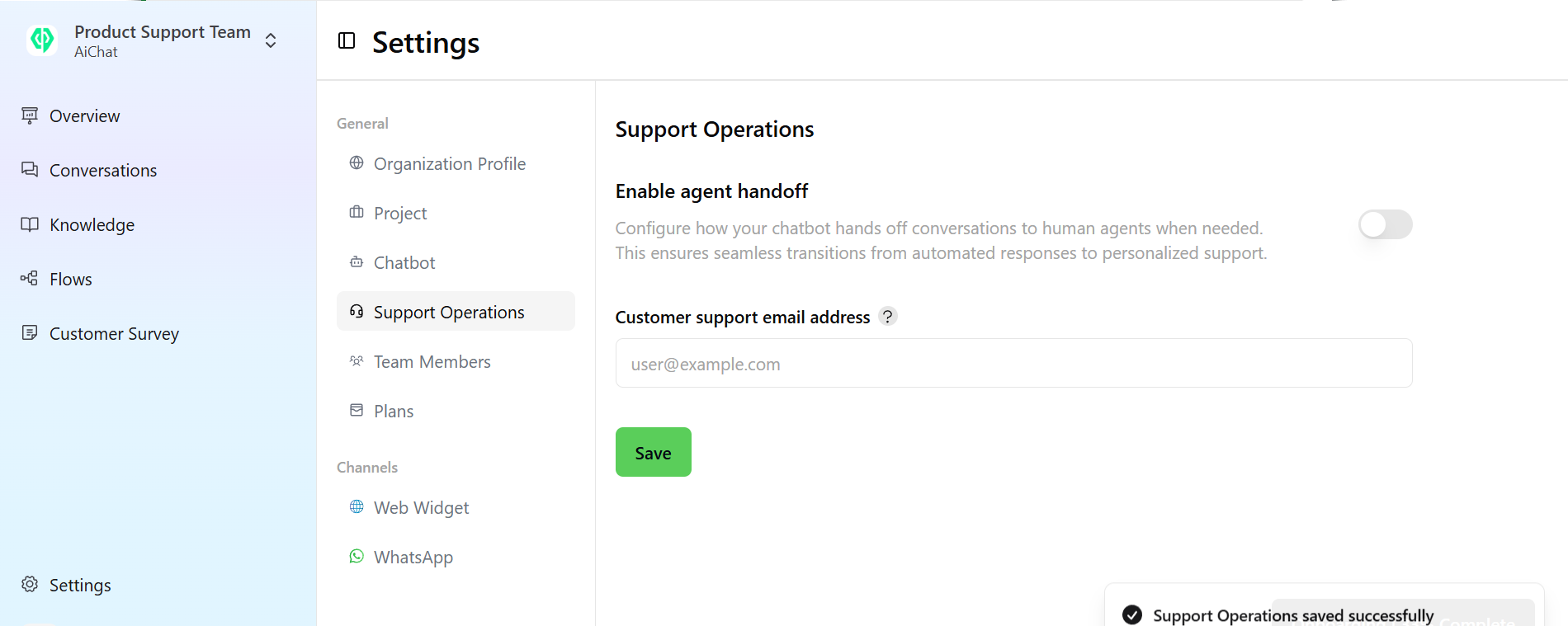 If you deactivate the support operations feature, the handoff flow configuration will no longer be visible on the dashboard. However, the flow you configured will remain but be deactivated so it can be used again if you re-enable agent handoff.
##
If you deactivate the support operations feature, the handoff flow configuration will no longer be visible on the dashboard. However, the flow you configured will remain but be deactivated so it can be used again if you re-enable agent handoff.
##